![AgriNous_RGB_Primary (Mobile).png]](https://support.agrinous.com.au/hs-fs/hubfs/AgriNous_RGB_Primary%20(Mobile).png?height=45&name=AgriNous_RGB_Primary%20(Mobile).png)
Before You Start
Step 1: Configure the Reader
Step 2: Pair the Reader with Your iOS Device
Step 4 – Connecting the Scanner in Agrinous
Click here to watch a video on how to navigate to the scanning screen in Agrinous
or alternatively follow these steps
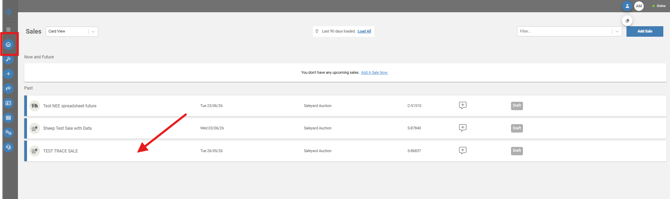
Navigate to the sale you wish to scan to from the Agrinous Dashboard.
Navigate to the pens tab and select the lot you wish to scan to and select scan.
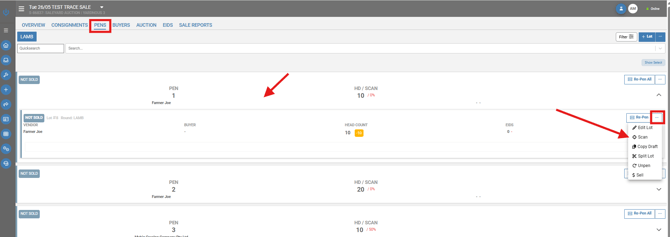
Or alternatively, if scanning to a consignment, select the consignment and select the consignment you wish to scan to and select Scan.
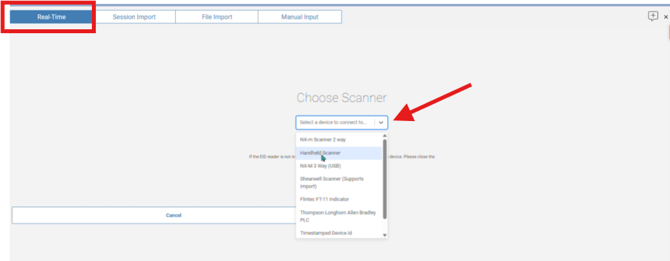
Select real time from the 4 options at the top of the page
A drop-down box will now appear; select the scanner from the drop-down, most likely named by the scanner model name.
Select the device.
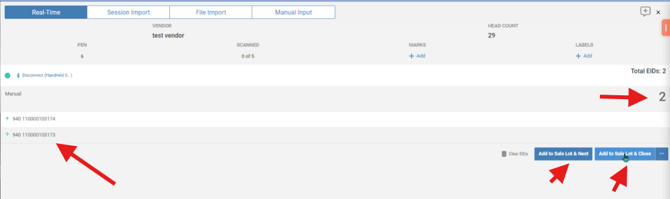
The Agrinous scan screen will now display.
Showing "Disconnect" in blue, this indicates that the scanner is connected.
The blue light on the scanner will also now be illuminated in blue.

Once connected:
The Bluetooth indicator on the hand held scanner will illuminate.
Step 5 – Start Scanning
Simply begin scanning EIDs,
As each tag is read, you will see it drop into the scanning screen, recording the EID against the selected lot in real time. Once all tags are scanned at the bottom of the screen, you can select
Add to sale lot & close OR Add to sale lot and next (if you wish to scan the next pen)
Expected Result
Before connecting your reader, ensure that:
- The reader is fully charged
- Bluetooth is enabled on your Android phone or tablet.
- The latest versions of the Agrinous app has been downloaded.
Step 1: Configure the Reader
On the AWR250, APR250 or APR350 reader:
- Navigate to Setup.
- Select Configuration.
- Choose Preset 2 (iOS).
- Select Yes to apply the configuration.
- Select menu>Set up>Reader Settings>Set Online mode>Set output format> scroll and select Short ASC II 15
The reader is now configured for use with Agrinous on iOS
Step 2: Pair the Reader with Your iOS Device
- Open Settings on your Android phone or tablet.
- Tap Bluetooth.
- Turn Bluetooth On.
- Under Available Devices, select your AWR250, APR250, or APR350 reader.
- Wait until the device status shows Connected.
Step 4 – Connecting the Scanner in Agrinous
Click here to watch a video on how to navigate to the scanning screen in Agrinous
or alternatively follow these steps
Navigate to the sale you wish to scan to from the Agrinous Dashboard.
Navigate to the pens tab and select the lot you wish to scan to and select scan.
Or alternatively, if scanning to a consignment, select the consignment and select the consignment you wish to scan to and select Scan.
Select real time from the 4 options at the top of the page
A drop-down box will now appear; select the scanner from the drop-down, most likely named by the scanner model name.
Select the device.
The Agrinous scan screen will now display.
Showing "Disconnect" in blue, this indicates that the scanner is connected.
The blue light on the scanner will also now be illuminated in blue.
Once connected:
The Bluetooth indicator on the hand held scanner will illuminate.
Step 5 – Start Scanning
Simply begin scanning EIDs,
As each tag is read, you will see it drop into the scanning screen, recording the EID against the selected lot in real time. Once all tags are scanned at the bottom of the screen, you can select
Add to sale lot & close OR Add to sale lot and next (if you wish to scan the next pen)
Expected Result
The Allflex/Aleis reader is connected to Agrinous As each EID tag is scanned, it appears immediately in the Agrinous scan list and can be saved to the selected consignment or sale lot.