![AgriNous_RGB_Primary (Mobile).png]](https://support.agrinous.com.au/hs-fs/hubfs/AgriNous_RGB_Primary%20(Mobile).png?height=45&name=AgriNous_RGB_Primary%20(Mobile).png)
We strongly suggest you workshop this process with your accountant or bookkeeper to ensure that it aligns with your correct process.
Setting up for success:
Working with your AgriNous team member, we can set up rule books to allocate the commission earnings to a specific CLEARING ACCOUNT solely used for the purposes of paying your livestock agent employee commissions. Note this account is NOT to be used to pay contractor/ 3rd Party commissions.
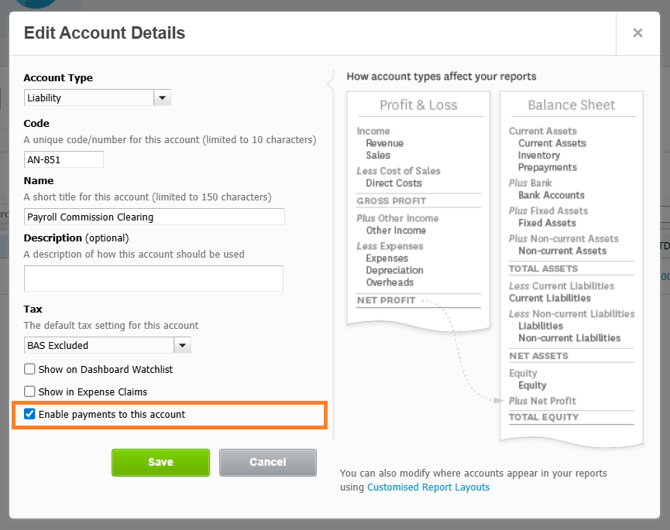
- The rule book will be set to use the "AN-851 Payroll Commission Clearing (Liability)" to allocate the entitled earnings payable to the Livestock Agent
- IN XERO
- Check the box on GL to 'Enable Payments' (See Below)
- Ensure that Xero has been set up to process commission payments
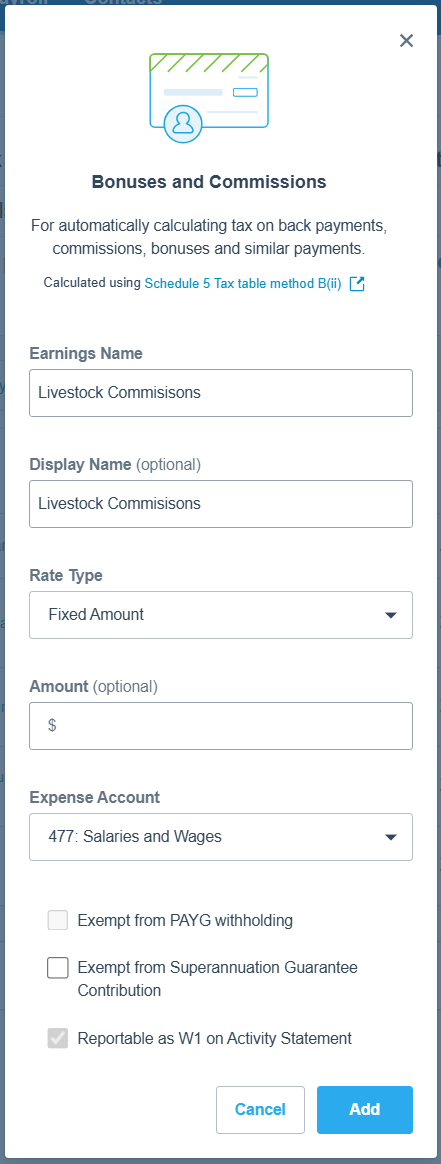
- Payroll > Payroll Settings > Pay Items > Earnings > Add
- Add new "Bonuses & Commissions" payroll item Eg, Livestock Commissions
Processing Sales & RCTIs:
Each agent set up for rebates or commission will generate an RCTI for every sale they represent a vendor; these documents need to be reviewed and approved, then sent to Xero along the same process as any other vendor or supplier payment.
Processing Payroll Commissions:
In AgriNousRun EOM Commission Reports form AgriNous & ensure that these reports match the total of all RCTIs generated for the individual in the statement period (typically fortnightly/monthly).
- If these values vary, please investigate to ensure alignment.
In XERO
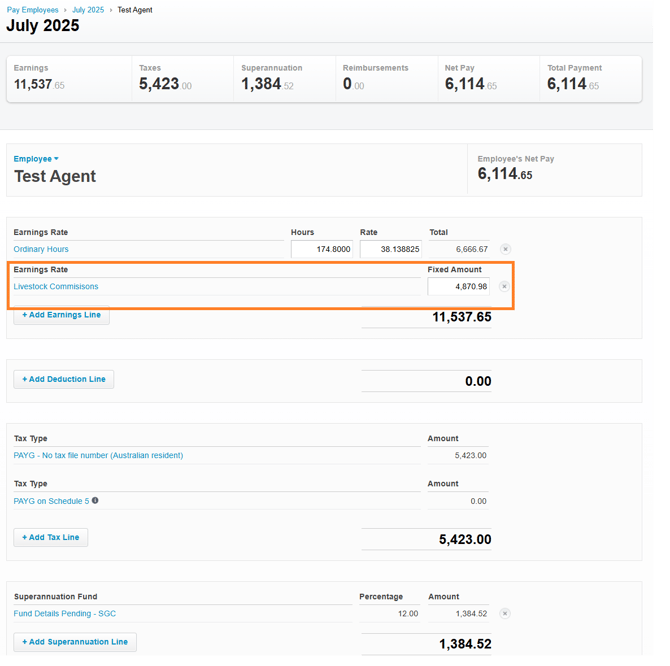
- Enter the report value into the created earnings line.
- This will apply the Superannuation and deduct PAYG tax.
Reconcile RCTIs:
Xero > Bills > Awiting Payment-
- Search for the Agent & select documents as listed in the EOM statement.
- Click 'Make Payment'
- (you may need to select "Show other account types"), Choose 851 as the account to pay from.
- Click 'Continue to Review Bills'
- Click 'Continue to payment summary'
- Click 'Finish and view batch'
Cross-check the 851 GL to ensure it is balanced and zeroed out for the prior month:
- Accounting
- Chart of Accounts
- Search 851 & click on the YTD value to see transactions.
- Note the value might not be $0.00 after the processing as transactions could have already been processed in the new month, use some basic maths to check that whilst there might be an active balance, the ledger should still be reconciled and accounted for.