![AgriNous_RGB_Primary (Mobile).png]](https://support.agrinous.com.au/hs-fs/hubfs/AgriNous_RGB_Primary%20(Mobile).png?height=45&name=AgriNous_RGB_Primary%20(Mobile).png)
The Reports screen is where you generate multi-sale or financial reports and find the ones you've already generated - it's the one place in AgriNous for creating and managing reports that span multiple sales. Every report you run from here appears in one searchable history, ready to re-download, re-send, or bundle together later.
Looking for Sale Reports instead? See YardNous Reports/Placards.
Don't see Reports in your main app left hand menu? Your account may not have multi-sale reporting switched on yet - ask our support team to enable it.
- Click on the Reports button on the main left hand navigation in AgriNous.

You Should see a view like this - 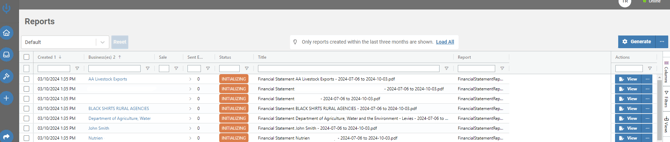
To Generate a new Report Click the Generate Button
Depending on your Subscription to Agrinous you should see some different reports you can generate. (see below)
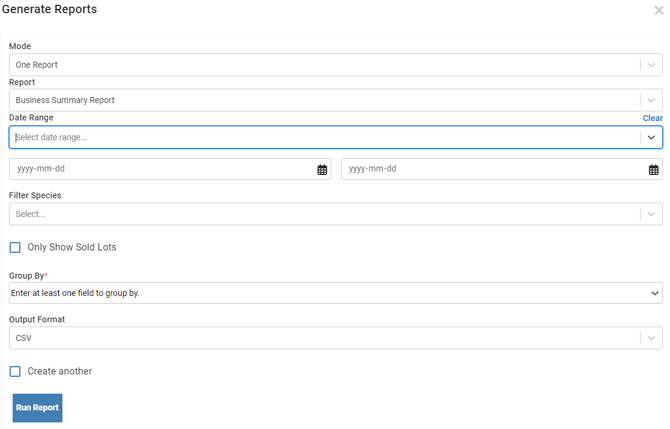
MODE
- One Report
Pick a single report type, fill in options (things like a date range, a specific Sale, or a Business), and click Run Report. Tick Create another to keep the form open so you can generate a second report straight after, without closing the window. - Many Reports
Generates the same report across several businesses in one go. Not all reports can be generated in bulk like this.
REPORT
Depending on what you choose here your options will change.
- Business Summary Report
A summary of sale activity, grouped however you like (by vendor, buyer, breed, age, and more), as a PDF or CSV.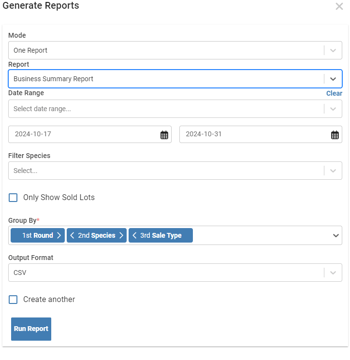
- Debtor Insurance Turnover
The turnover figure used to calculate debtor insurance premiums.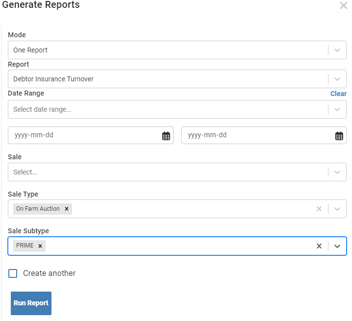
- Transit Insurance
Transit insurance charges applied across sales. - Federal Levies (CSV)
Federal livestock transaction levies collected across sales, in CSV format.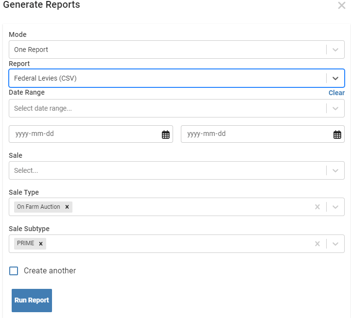
- Federal Levies (PDF)
Federal livestock transaction levies collected across sales, in PDF format.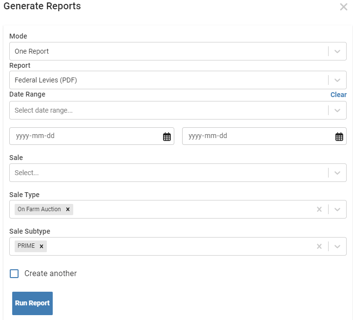
- Financial Statement
A business's transactions over a date range; show a vendor or buyer what they've bought, sold, or are owed.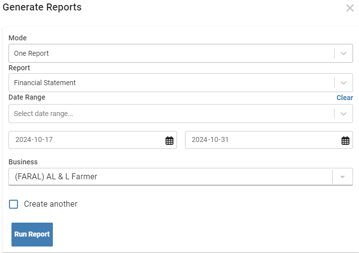
- Financial Statement (Zip)
The same statement bundled into a single compressed .zip file.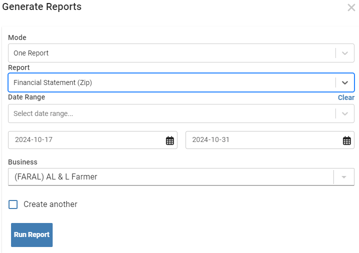
- Detailed Financial Statement
A fuller version of the Financial Statement, with the option to include full stock/line-item detail rather than just totals. - Outstanding Statement
A business's outstanding, unpaid balance as at a point in time, for chasing up unpaid accounts. - Transactions
A plain list of a business's billing transactions over a date range. - Agency Earnings
How much a livestock agency has earned in commission over a date range, as PDF or Excel. - Commission Relationships
Commission rates and arrangements between related businesses across a date range and set of sales, as PDF or Excel. - Relationships
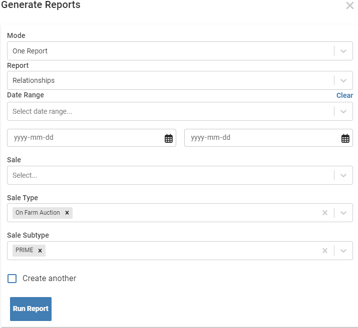
- SA Sheep Industry Fund
Contributions collected for South Australia's Sheep Industry Fund.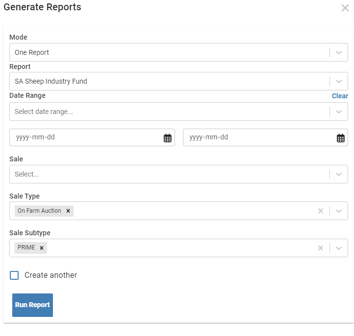
- Vic State Revenue Office Levy
The Victorian state levy collected across sales, for lodging with Vic's State Revenue Office.
DATE RANGE
- Today
- Yesterday
- Last 7 Days
- Last 30 Days
- Last 90 DAys
- Last Month (*)
- Last 3 Months (*,*,*)
- Last 12 Months (* 2000- * 2000)
You can customise your date range in the fields

FILTER SPECIES
- Sheep
- Cattle
- Pig
- Dog
- Horse
- Goat
- Clearing Sale
- Mixed
ONLY SHOW SOLD LOTS
You can select this option to NOT include the No Sale or passed-in lots.

GROUP BY
There is a variety of different fields to choose from here. The order you click on them is the order they will export out by.

OUTPUT FORMAT
- CSV
SALE
Can select a single Sale
SALE TYPE
Types of sales, you can select multiple Choices.
SALE SUBTYPE
You can break it down even further with the sub-type of sales. Again you can choose Multi.
CREATE ANOTHER
To Keep prefilled and create another report with changes Click this field.

RUN REPORT
Click  to generate the report.
Viewing and Sending Reports
Each row has two actions:
- View — opens the compiled report.
- Send — emails that one report to a business's contacts.
Sending reports to several businesses at once
Tick the rows you want, then click Bulk Send Reports. You'll be asked which type of contact to send to — Primary, Accounts, Commercial, Compliance, or eNVD recipients (these match the recipient types you can set on each Business's Contacts) — and shown a preview of exactly who will receive what before you confirm. Two things to watch for:
- If your selection would email more people than your Saleyard's sending limit allows, you'll need to reduce the number of people selected before you're able to send.
- If a business has no contact matching the type you picked, its report is quietly skipped — the screen will warn you how many will be left unsent so nothing goes missing without you knowing.
Combining reports into one PDF
Tick the rows you want and click Compile as PDF to merge them into a single downloadable file. Note that CSV, XML, and ZIP-format reports can't be selected for sending or compiling — the screen filters these out automatically since they can't be merged.