![AgriNous_RGB_Primary (Mobile).png]](https://support.agrinous.com.au/hs-fs/hubfs/AgriNous_RGB_Primary%20(Mobile).png?height=45&name=AgriNous_RGB_Primary%20(Mobile).png)
Key Steps
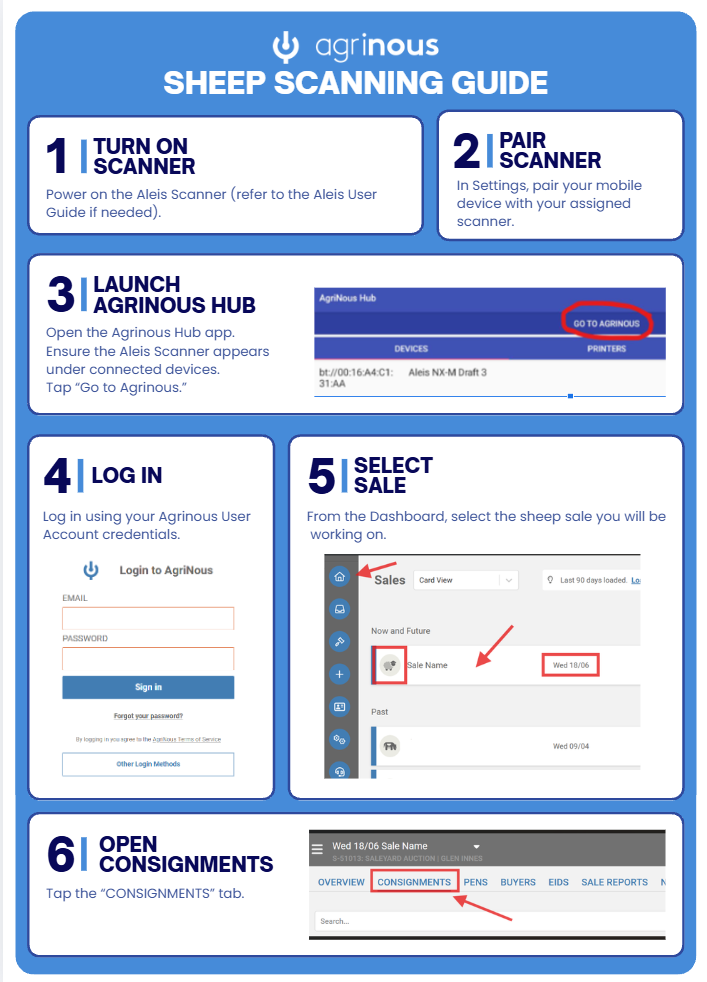
1. Prepare the tablet and scanner at the yards 0:19
- Ensure the tablet is connected to the scanner before processing begins.
- Log in to the system at the yards.
- Confirm you are ready to process consignments as they arrive.
- Be prepared to draft sheep into sale lots as scanning occurs.
2. Find the correct consignment 0:41
- From the overview screen, open Consignments.
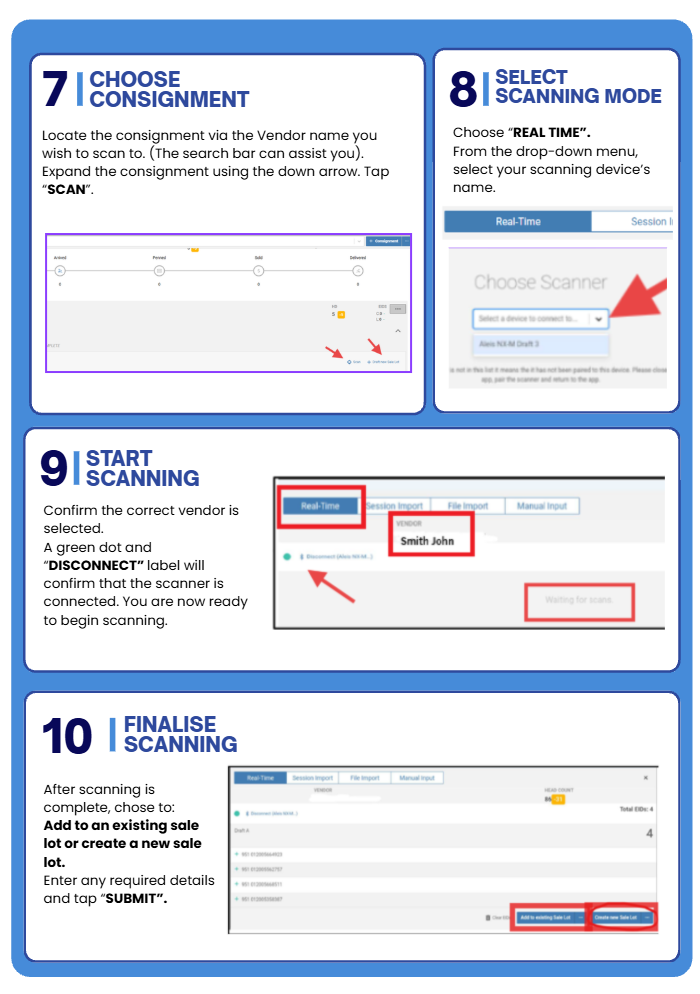
- Use the search filter to find the vendor name or consignment.
- Select the correct consignment from the results.
- Expand the consignment using the arrow to view available actions.
3. Start scanning the consignment 1:05
- Locate the Scan button within the consignment.
- Tap Scan to begin drafting and scanning.
- Confirm the scanner is actively transferring EIDs into the draft columns.
- Continue scanning until the draft is complete.
4. Understand the three-way draft layout 1:14
- Recognize that the draft screen contains three columns representing three draft directions.
- Each column is numbered 1, 2, and 3.
- Use the column numbers to confirm which EIDs are being drafted into each pen.
- Monitor the scan results as sheep are sorted into the correct draft group.
5. Create sale lots from drafted groups 1:41
- When drafting is complete, review each column.
- At the bottom of each column, select Create New Sale Lot for the group you want to keep.
- If only one or two draft groups are needed, create sale lots only for those groups.
- Repeat this step for each draft group you want to convert into a sale lot.
6. Redraft sheep if needed 2:05
- If a group needs to be drafted again, select Clear EIDs.
- Run the sheep back through the draft process.
- Re-scan them into the three-way draft as needed.
- Use this option when you want to further split sheep into smaller sale lots.
7. Enter sale lot details and compliance information 2:19
- Enter the headcount for the sale lot.
- Select the correct round.
- Add a description and breed.
- Include any relevant marks or additional details.
- If required, choose an EID exemption reason when compliance requirements are not fully met.
8. Submit the sale lot 3:07
- Review the entered details for accuracy.
- Tap Submit to create the sale lot.
- Confirm the drafted group disappears from the active draft screen.
- Repeat the process for the remaining draft columns until all intended sale lots are created.
9. Finish drafting and return to the main workflow 3:55
- Once all sale lots are created, press the X to close the drafting screen.
- Return to the main view and confirm the draft has been completed.
- Check that the system shows the correct drafted and not drafted totals.
- Verify that pending changes are processing correctly.
10. Review newly created sale lots and assign pens later 4:13
- Open Pens to view the most recently drafted sale lots.
- Confirm the new sale lots appear at the top of the list.
- Assign a pen only after drafting is complete, if needed.
- Allow the drafting team to continue working without waiting for pen assignment.
- Have the penning team assign the correct pen after the sheep are moved.
Cautionary Notes
- Do not assign a pen during drafting unless it is operationally necessary; this can slow down the workflow.
- Ensure the correct consignment is selected before scanning to avoid misallocation of EIDs.
- If compliance requirements are not met, use the correct EID exemption reason rather than leaving the record incomplete.
- Double-check headcount and sale lot details before submitting to prevent errors.
- Use Clear EIDs only when you intentionally want to redraft the sheep.
Tips for Efficiency
- Keep the tablet connected and logged in before consignments arrive to avoid delays.
- Use the search filter to quickly locate consignments by vendor name.
- Create sale lots immediately after each draft group is completed to keep the workflow moving.
- Leave pen assignment until after drafting so the drafting team can continue uninterrupted.
- If multiple sale lots are being created, repeat the same entry pattern to save time and reduce mistakes.
Link to Loom
https://loom.com/share/04e78c769b5744dca1248a31a68fdf5d
Downloadable Guide to Leave at your Scanner